> ## Documentation Index
> Fetch the complete documentation index at: https://pindocs.jackalprotocol.com/llms.txt
> Use this file to discover all available pages before exploring further.
# Uploading Files
> Jackal Pin has an intuitive front end that lets anyone upload files to IPFS
Click on images to go fullscreen
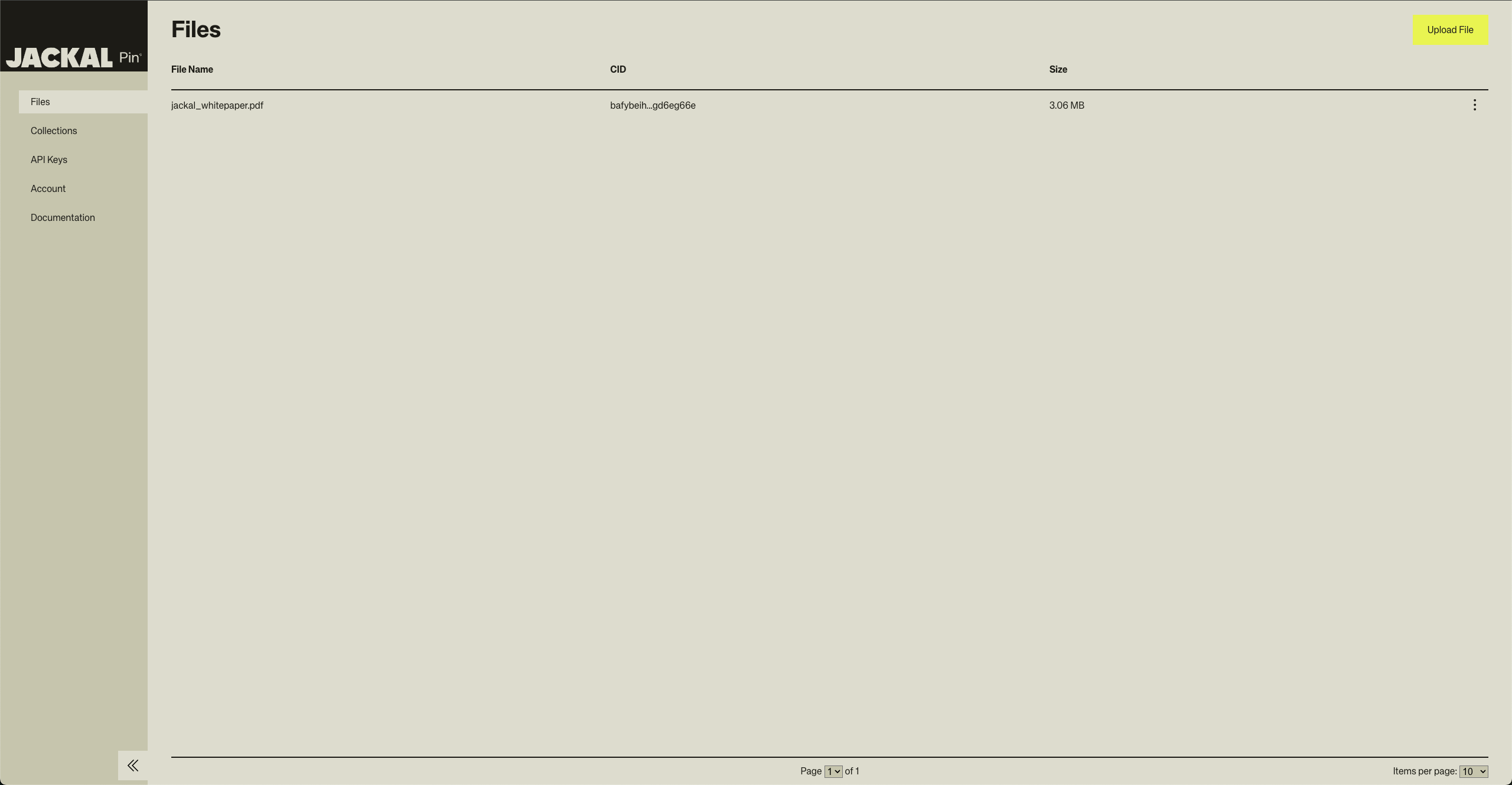 Once you finish creating an account, you will be brought to this page.
## Uploading Files
One way to upload files is by clicking the yellow button in the top right
corner. This will open up the file directory of your machine. From the
directory, you can select a file to upload.
Once you finish creating an account, you will be brought to this page.
## Uploading Files
One way to upload files is by clicking the yellow button in the top right
corner. This will open up the file directory of your machine. From the
directory, you can select a file to upload.
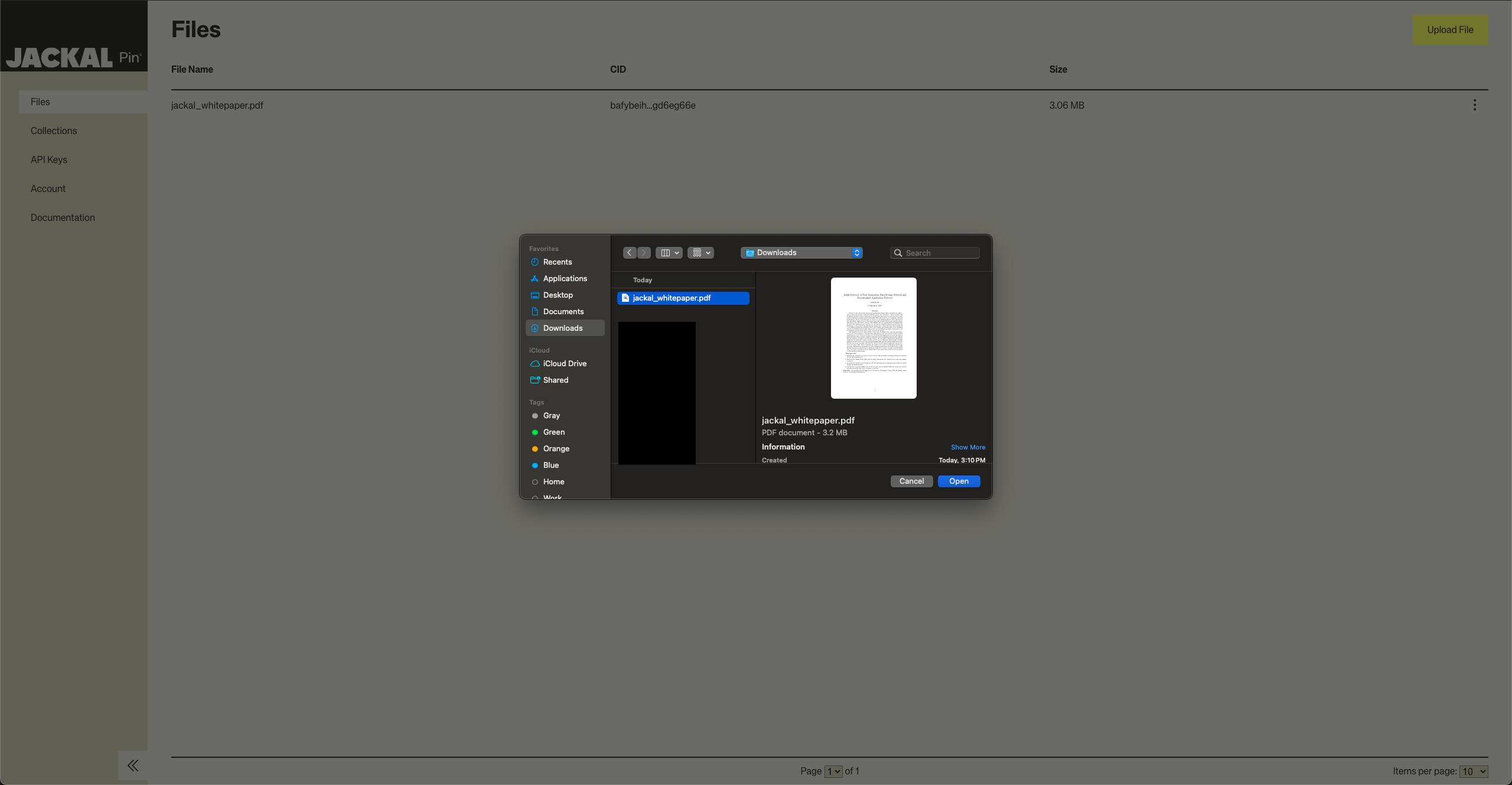 Click the open button and you are finished.
The second way to upload files on this page is by dragging and dropping.
## Organize by Collection
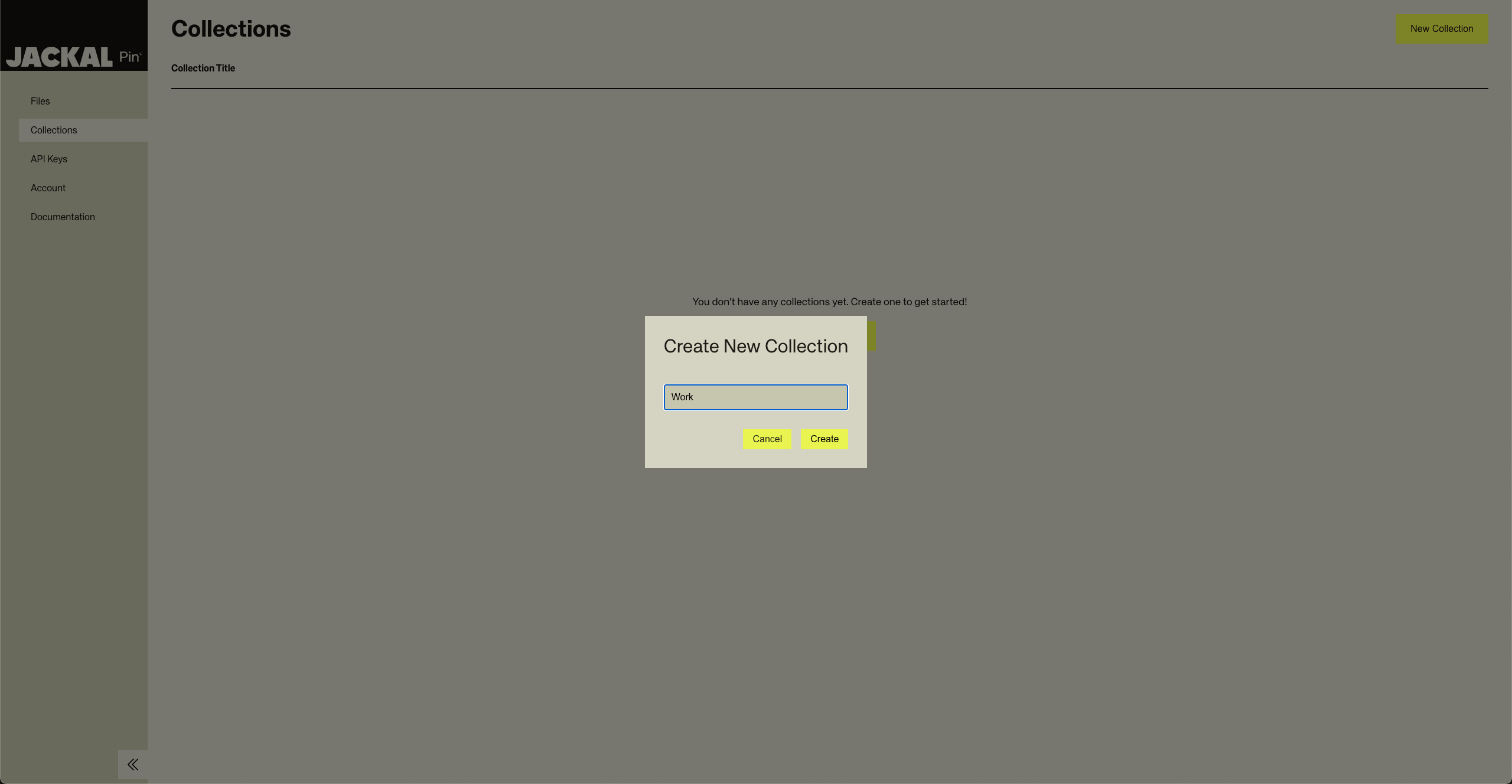
You can organize files in collections. You can think of collections like folders in which you can store files.
By navigating to the collection page, you can create a collection.
Click the open button and you are finished.
The second way to upload files on this page is by dragging and dropping.
## Organize by Collection
You can organize files in collections. You can think of collections like folders in which you can store files.
By navigating to the collection page, you can create a collection.
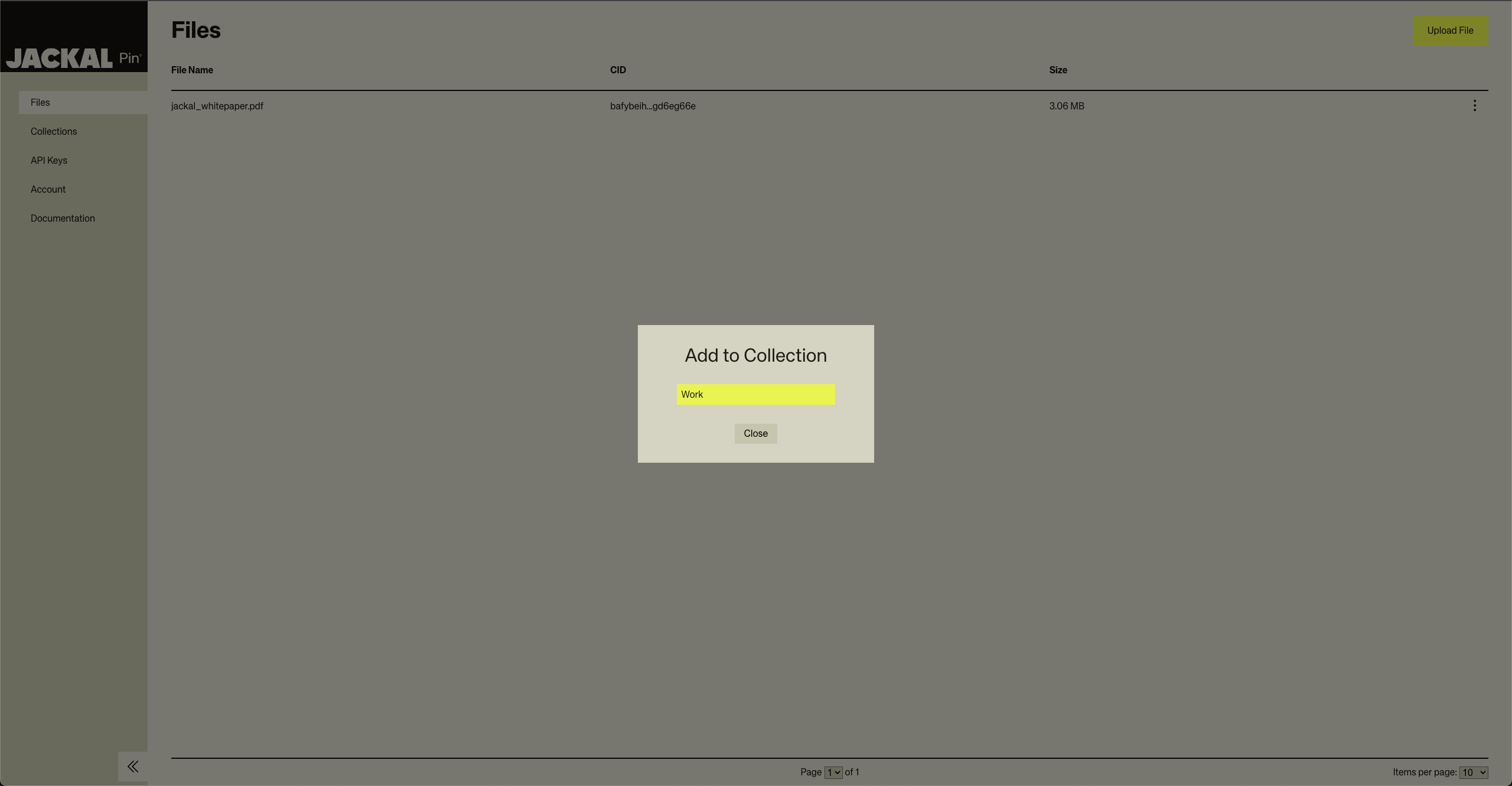
 Change back to the files page and select the file you want to organize by collection.
 Then you can decide which collection you want to store the selected file in.
 Finally, you can see all your folders on the collections page.
