> ## Documentation Index
> Fetch the complete documentation index at: https://pindocs.jackalprotocol.com/llms.txt
> Use this file to discover all available pages before exploring further.
# Import a Collection
> Jackal Pin supports entire folder uploads
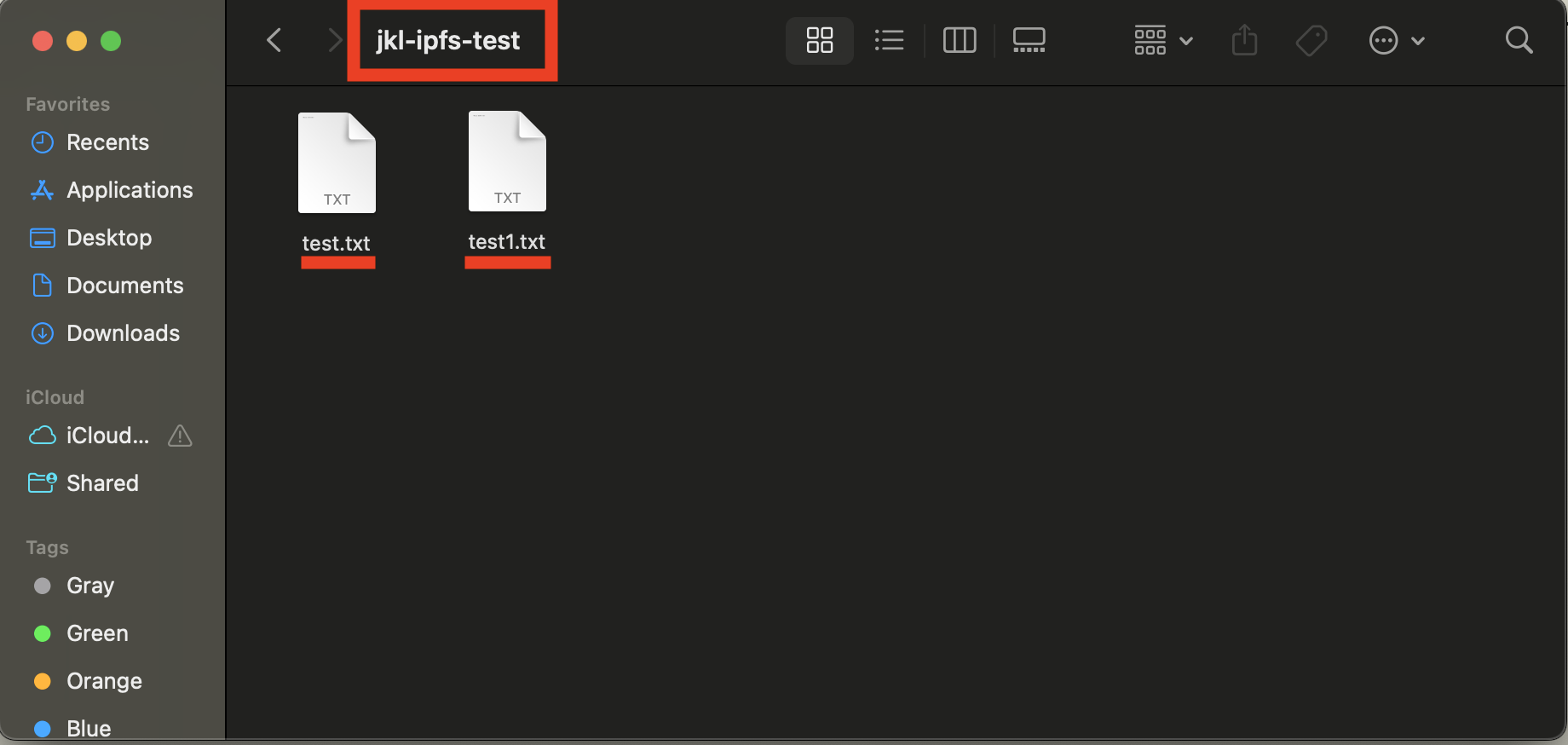
For the purposes of this demo, I will be uploading the following folder named: `jkl-ipfs-test`.
The folder has 2 `.txt` files stored inside.
If you are uploading NFT assets, pretend the `.txt` files are your image
assets.
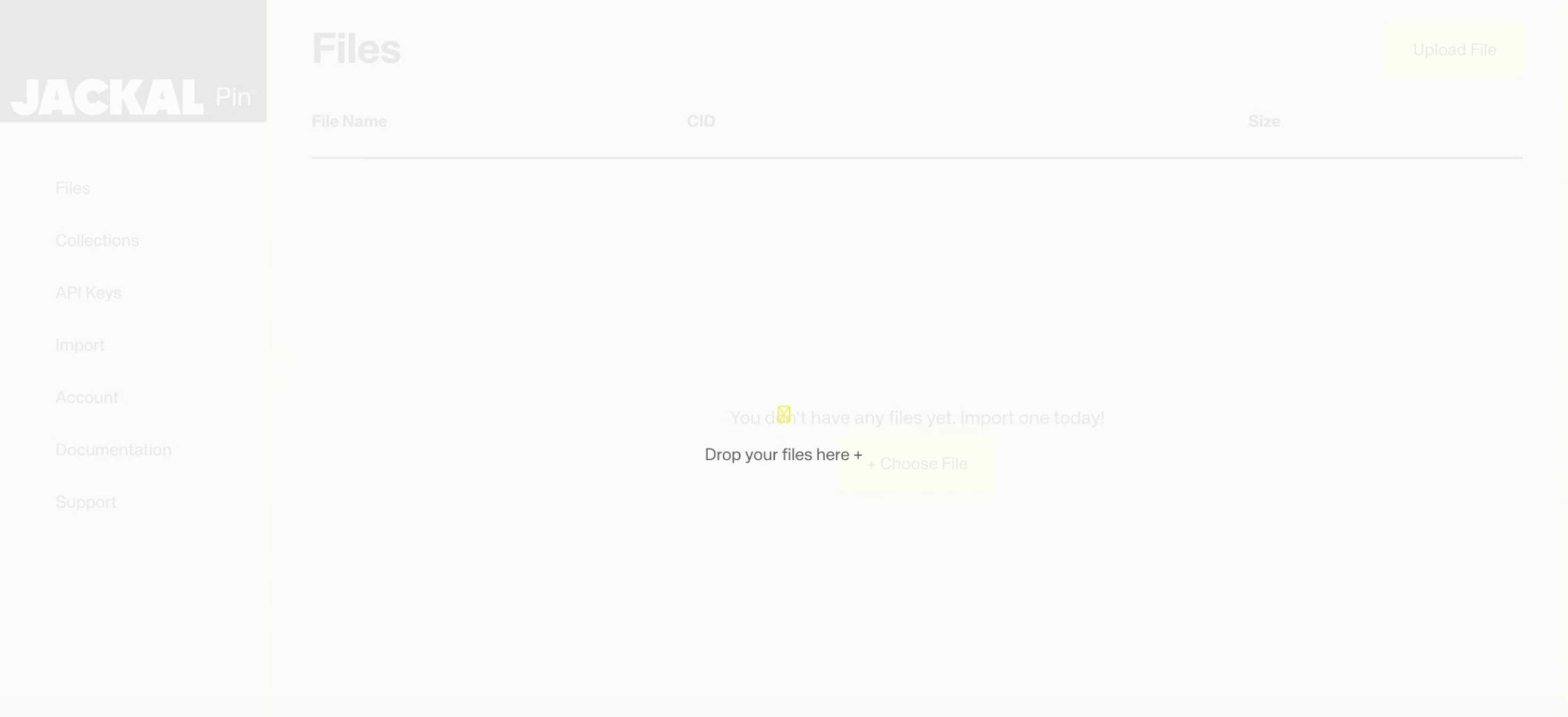
 You can drag and drop a folder directly into Pin and it will create a collection with the
folder name and sort the files inside, preserving file structure.
Dragging a folder pin should trigger the screen below.
You can drag and drop a folder directly into Pin and it will create a collection with the
folder name and sort the files inside, preserving file structure.
Dragging a folder pin should trigger the screen below.
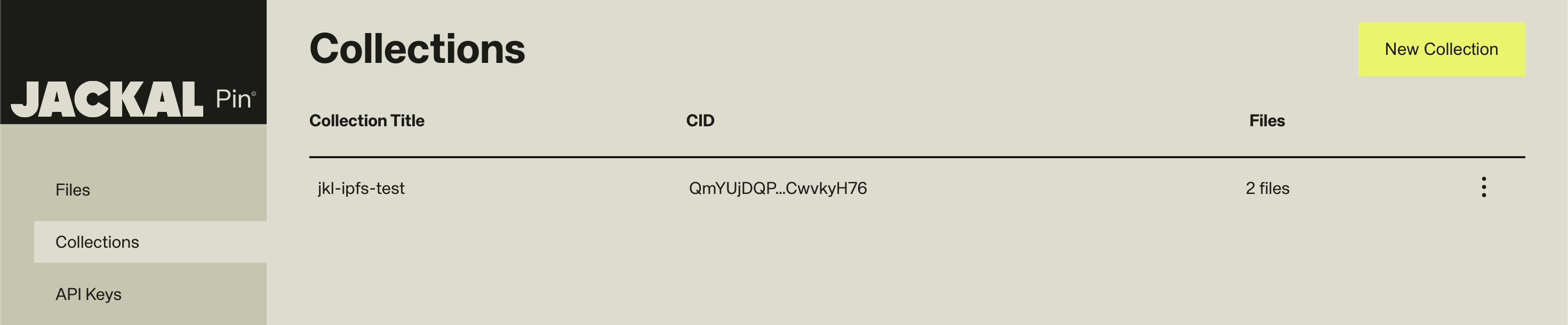
 After the upload is successful, you can see that the folder supports the structure of the uploaded folder.
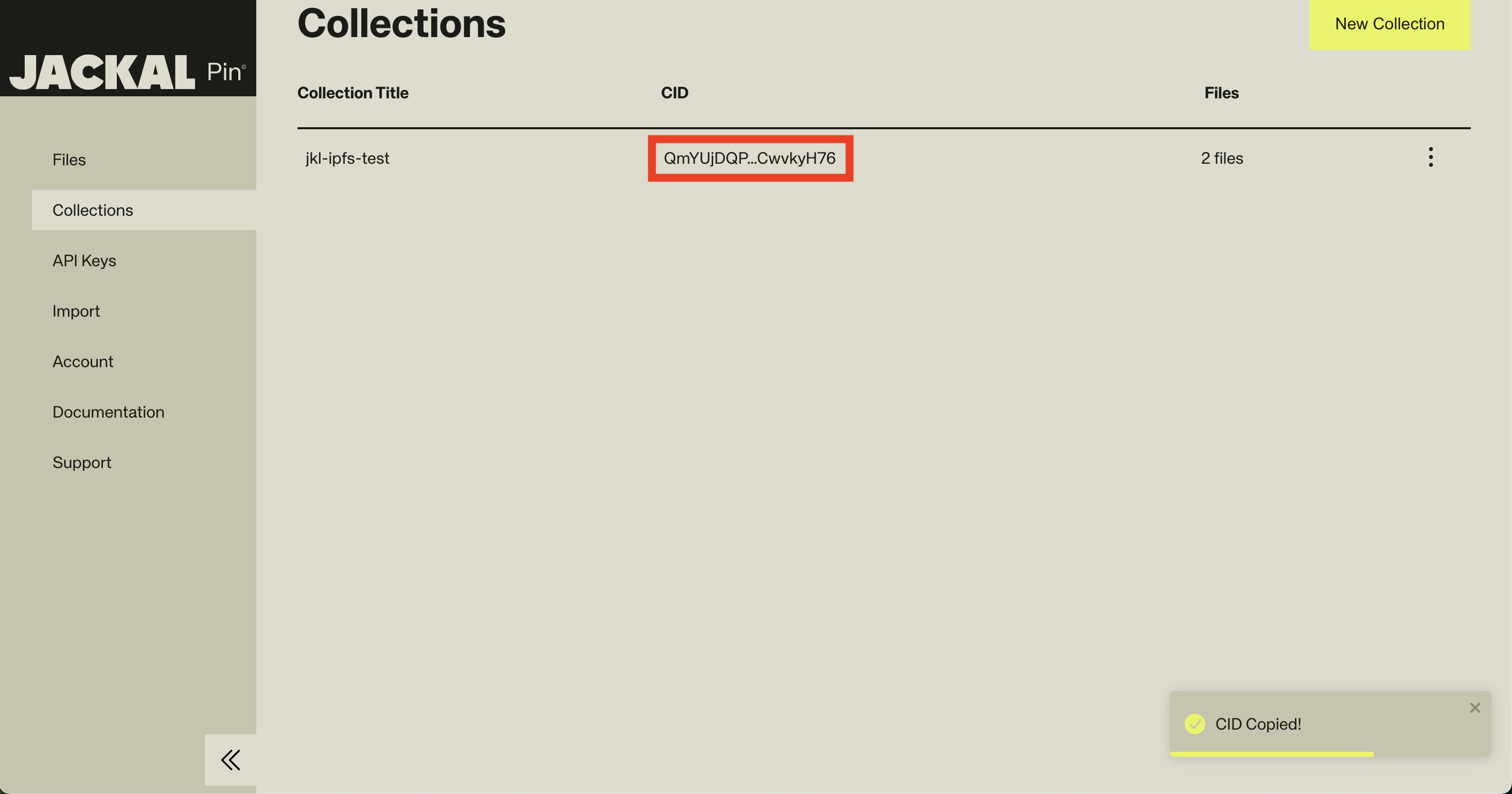
 By clicking on the cid of the folder you want to retrieve, you will
automatically copy it. The cid will be that of the entire collection.
By clicking on the cid of the folder you want to retrieve, you will
automatically copy it. The cid will be that of the entire collection.
 ## Using Your Collection CID
Once you've successfully uploaded your collection, you can use the CID in various ways:
* **For NFT Assets**: Use the collection CID to reference your entire asset folder in NFT projects
* **In NFT Metadata Files**: Include the CID in your NFT metadata JSON files to link to images and other assets
* **For NFT Marketplaces**: Use the CID when minting or listing NFTs on platforms like [Stargaze](https://www.stargaze.zone)**.**
* **For NFT Smart Contracts**: Reference the CID in your smart contracts for on-chain verification of assets
* **For NFT Galleries**: Create decentralized galleries that display your NFT collections using the CID
The CID serves as a permanent, content-addressed identifier for your entire NFT
collection, ensuring your digital assets remain accessible and verifiable on the
IPFS network for collectors and marketplaces.
## Using Your Collection CID
Once you've successfully uploaded your collection, you can use the CID in various ways:
* **For NFT Assets**: Use the collection CID to reference your entire asset folder in NFT projects
* **In NFT Metadata Files**: Include the CID in your NFT metadata JSON files to link to images and other assets
* **For NFT Marketplaces**: Use the CID when minting or listing NFTs on platforms like [Stargaze](https://www.stargaze.zone)**.**
* **For NFT Smart Contracts**: Reference the CID in your smart contracts for on-chain verification of assets
* **For NFT Galleries**: Create decentralized galleries that display your NFT collections using the CID
The CID serves as a permanent, content-addressed identifier for your entire NFT
collection, ensuring your digital assets remain accessible and verifiable on the
IPFS network for collectors and marketplaces.